


Mosa AI: Collage & AI Video
4.636.00 Reviews
App Specs
- Version
- 1.1
- Updated On
- License
- Free
- Downloads
- 10,000+
- Developer
- Mor Tosbaa Mobile
- Categories
- Photography
- Platform
- Android
Screenshots
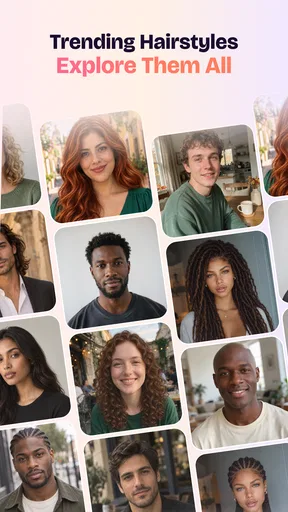
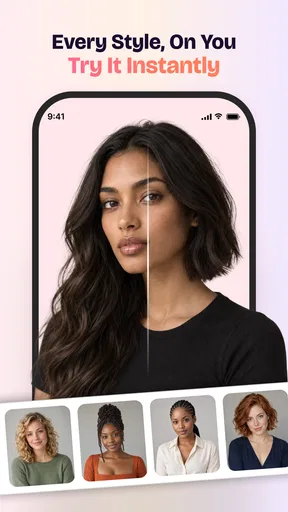
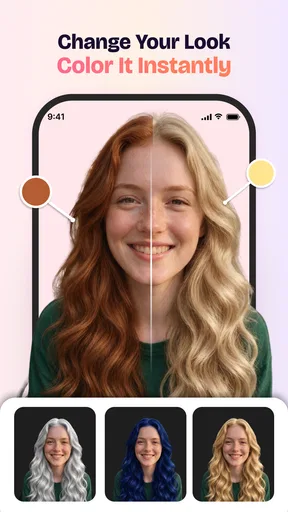
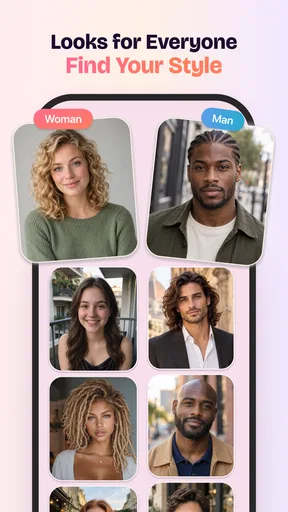
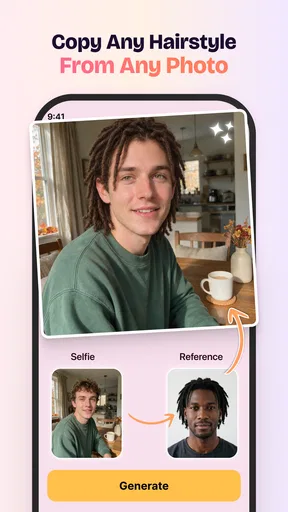
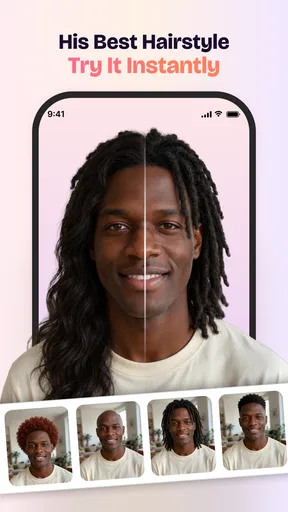
 Analysis by AppCompare
I approach photo tools with a practical question: can I make something presentable without turning a quick edit into a project? Mosa AI: Collage & AI Video is aimed at that in-between task, combining photo collages with AI-generated video built around a photo, portraits, or clips. That range could be useful when I want to make a visual post or a short personal keepsake, but it also makes clarity and ease of control important. My overall impression is that the idea is appealing, while the app is best suited to people comfortable exploring a creative tool rather than anyone who needs a predictable, highly guided workflow.
Choosing the right kind of project
Before opening Mosa AI: Collage & AI Video, I would decide what I want the finished image to do. A collage is useful when several people or moments deserve equal attention; an AI-made moving portrait is more focused on one subject. This simple choice helps avoid spending time testing formats that do not suit the occasion, and it gives a clearer way to judge whether the result is worth keeping.
The distinction matters when sharing. For a family chat, a collage can show a handful of moments at once, while a moving treatment may be more personal for a single portrait. If I were making something for a school notice or work presentation, I would lean toward a straightforward still image unless the animated effect clearly served the message. In those settings, reliable readability usually matters more than novelty.
Making sense of the creative workflow
I use this section to look at how the app’s two creative paths shape a session: a collage calls for choosing and arranging several images, while AI video begins with material intended to move. Thinking about that difference before tapping through options can make the experience easier to follow and less tiring. It also sets up a closer look at how visual and physical demands may vary from one person and setting to another.
Readability and navigation
The app’s purpose is easy to understand at a high level: it brings collage-making and AI video creation together instead of focusing on just one kind of photo edit. That is a sensible starting point for someone who wants a single place to turn images into different kinds of visual output. The challenge is that these are distinct tasks. A collage asks me to arrange and compare still images; an AI video asks me to select source material and judge a moving result. The more clearly an app separates those paths, the easier it is to know what to do next.
I would approach it with a specific goal in mind rather than opening it and expecting every option to be self-explanatory. For example, decide whether you want a composed set of pictures or a moving portrait, then start with the matching source material. This small bit of preparation can reduce indecision in any creative editor, especially one bringing still and moving formats together. If you are choosing an app for a relative who finds multi-purpose interfaces confusing, try the main workflow together first and see whether its labels and steps make sense to them.
Mosa AI is a photography app from Mor Tosbaa Mobile. It has a 4.6 average from around 3,300 ratings, and its reach is still relatively modest at over 10,000 installs. Those figures offer some context for its audience, but they do not tell me whether the specific controls will suit a particular person. The useful test is practical: can you identify the collage or video task, select suitable images, and understand the result well enough to decide what to change?
Worth Reading Before You Choose

Flipboard Shows What News Apps Must Do Beyond the Feed

Switching to Android Auto Means Rethinking Your Driving Routine

Google Calendar Makes a Crowded Week Easier to Manage

Ludo King Makes the Most of the Minutes Between Plans

Baby Panda World Brings Quick Play to Modern Phones, but Its Game Library Feels Busy

ESPN’s Live Game View Makes Following Close Games Easier
Working with photos, portraits, and clips
The strongest reason to consider this app is the combination of formats. Many standard photo editors are comfortable territory for cropping, filters, and basic adjustments, while a dedicated collage maker is better when precise placement is the priority. Mosa AI’s distinctive proposition is that a photo-based project can also lead toward an AI-generated video. That may save switching between tools when you are experimenting, though it does not automatically make it the best choice for detailed editing in either format.
A practical workflow is to sort your source images before you begin. If you are making a collage, choose pictures with a shared occasion or visual theme so the finished composition feels intentional rather than like a camera-roll dump. If you are exploring a portrait video, start with a clear image where the subject is easy to distinguish. That is a general preparation tip, not a promise that the app will transform every image in the same way; creative results depend on the material you choose and what the tool produces.
One non-obvious trade-off is that convenience and control are not the same thing. Having collage and AI video creation in one app can make it easier to try a new format, but people who care about exact spacing, typography, or frame-by-frame adjustments may prefer a specialist editor. I would treat Mosa AI as a place to explore a visual idea, then judge the output before relying on it for a project where every detail needs to match a brief.
Motor and sensory considerations
Photo editing can demand more hand precision than its casual feel suggests. Selecting a small thumbnail, adjusting a composition, or repeating a choice after an unsatisfying result may be tiring for someone with limited dexterity. I would keep the first project simple: use only a few well-chosen pictures, avoid making many tiny adjustments at once, and pause to review the result before continuing. That makes the task easier to manage without assuming that the app has any particular accessibility control.
For users with low vision, the key question is whether the interface remains comfortable to inspect during real use. Image-heavy tools can make visual comparison central to the task, and a busy screen or subtle differences between controls can add effort. I would test the app in the lighting and display conditions the person normally uses, checking whether they can distinguish the selected image from the others and follow the editing steps. If they depend on screen-reader support, verify the key actions directly on their device before committing to the app; I would not assume that every visual editing control is fully accessible to assistive technology.
AI-generated motion can also be a sensory consideration. Some people enjoy seeing a still image become animated; others may find unexpected movement distracting or uncomfortable. A considerate way to try it is to preview a result in a calm setting and stop if the motion is unpleasant. For sharing with friends or family, remember that a moving version is not automatically a better version: a still collage may be easier to view, save, and revisit.
Using it in everyday situations
Imagine getting home from a family gathering with several favorite pictures and wanting to send one polished result to a group chat. A collage is a natural fit when the goal is to show different moments together, while a short AI video may be more engaging if you want to focus on one portrait. I would make the collage first if the group needs to see everyone clearly, and try video only when a moving treatment suits the occasion. That choice avoids turning a simple share into a format experiment that distracts from the people in the pictures.
The same distinction helps with small personal projects. For a birthday message, a collage can place several memories side by side; for a single portrait, experimenting with AI video may create a more dynamic presentation. If the result is meant for a workplace, school, or formal event, I would be more cautious and inspect it carefully before sharing. An AI treatment can look different from the source image, and a playful effect may not fit a setting where natural appearance or precise brand styling matters.
There is also a useful low-pressure way to learn the app: use copies of ordinary photos rather than starting with the one image you cannot replace. Keep the original files untouched, compare the finished result with the source, and only then decide whether the style fits. This is especially helpful when the purpose is unclear at first—perhaps you are not sure whether a collage or moving portrait will communicate the moment better. Trying a modest, familiar subject makes that comparison more meaningful.
Cost, device fit, and practical limits
Mosa AI is free to install, with in-app purchases listed at $9.99 to $14.99 per item. I would explore the basic experience before paying for anything, then decide whether a paid item addresses a real need in my workflow. That matters because AI creative apps can be fun to test once or twice without becoming tools I use regularly. If you only need an occasional photo grid, a simpler free collage editor may be enough; if you want to experiment with both still and moving outputs, having the two approaches together may justify a closer look.
The current version is 1.1 and it requires Android 7.0 or later. Its content rating is Everyone, which makes the stated age suitability broad, but that does not guarantee the interface will be easy for every age or ability. Younger users may still benefit from an adult helping them choose photos and review what they create, particularly when images include other people. Likewise, someone using an older or less responsive device should try a small project first rather than assume every editing step will feel smooth on their setup.
For a more demanding job, I would compare the result against a dedicated alternative before settling on it. A conventional collage app is likely the more comfortable route when layout control is the main requirement. A fuller video editor is a better fit when you need deliberate timing, a sequence of shots, or detailed finishing. Mosa AI makes most sense when the appeal is trying a photo-led idea quickly, not when you need a complete production suite.
Who may find it difficult
The app is not my first recommendation for someone who wants no experimentation at all. If you need an identical, repeatable result every time, an AI-generated treatment may feel less predictable than manually arranging a collage or using a standard editor. It may also be a poor fit if you are sensitive to motion, depend on precise visual controls, or find it tiring to compare several image-based options. In those cases, a still-photo workflow or a tool already familiar to you may be more comfortable.
Another limitation is the attention the two creative modes can demand. A collage and an AI video are not interchangeable deliverables, so having both available can add choices rather than remove them. I would not start with a large batch of pictures or a time-sensitive assignment. First learn how the app handles one small, low-stakes project; if the steps feel clear and the output matches your expectations, then expand to more important images.
That gradual approach is also useful when supporting another person. Ask what they want to make before opening the editor, give them time to inspect each result, and let them choose whether motion is welcome. A tool is only genuinely convenient when the person using it can understand the choices and feel comfortable with the outcome—not merely when it offers more creative possibilities.
An inclusive verdict for curious photo-makers
I see Mosa AI as a worthwhile experiment for people who enjoy turning personal photos into shareable compositions and are curious about AI-assisted motion. Its mix of collage and portrait-oriented video gives it a more specific purpose than a basic filter app, and its free entry point makes it easy to consider before deciding whether any in-app purchase is worthwhile. The developer is Mor Tosbaa Mobile, and the app is suitable for a broad age group, though individual comfort with visual editing and motion still matters.
My recommendation is conditional rather than universal. Try it if you want to compare a still collage with a more animated treatment and are happy to evaluate the result for yourself. Begin with a few clear photos, keep originals, and choose the format that serves the moment instead of using motion simply because it is available. Skip it in favor of a dedicated editor if exact layout, predictable output, or detailed video control is central to your work. The best fit is someone who values creative exploration but is willing to check that the process and final image feel right for them.
A sensible first test
For a first session, I would pick a small set of non-sensitive photos and make one straightforward collage before trying a portrait animation. That order gives me a familiar baseline: I can see whether selecting images and evaluating a composition feels comfortable, then decide if moving output adds anything. It is also a useful way to answer a practical question before spending money: does the app’s particular mix of still and moving creation suit the projects I actually make?
Mosa AI: Collage & AI Video is most appealing to curious photo-makers who want an approachable experiment rather than a dependable replacement for specialist editing software. If you need a polished result on a deadline, have difficulty evaluating visual changes, or would rather avoid motion effects, a simpler tool may be the kinder choice. If you enjoy trying different treatments and can take time to inspect the outcome, this app is worth testing with a low-stakes image first.
Pros
- Combines photo collages and AI video tools in one app.
- Offers a quick way to turn selected photos into short videos.
- Useful for creating social-ready visual content on a phone.
- Collage layouts help arrange multiple photos without a separate editor.
- AI-assisted features can make creative effects easier to try.
Cons
- AI results may vary depending on the photos and prompts used.
- Some features or exports may require a paid subscription.
- Processing AI videos can take time
- especially on older devices.
- Export options may be limited compared with dedicated video editors.
- The app may need access to personal photos and media to work.
FAQs for Mosa AI: Collage & AI Video
What is Mosa AI: Collage & AI Video?
Mosa AI: Collage & AI Video is a creative editing app for making photo collages and AI-assisted video content. It brings visual editing tools together in one place, so you can arrange photos, explore AI effects, and prepare content to share. The exact tools and available templates may change with app updates, so check the current listing to confirm which features are offered on your device.
How do I make a collage or AI video with Mosa AI?
Start by selecting photos or other media from your device, then choose a suitable collage layout or video style and adjust the result using the editing options provided. Depending on the version, some AI effects may require additional processing time or an internet connection. Before exporting, preview the finished project and check the available resolution, format, and sharing options.
Is Mosa AI: Collage & AI Video free to use?
The app may be available to download without an upfront charge, but that does not necessarily mean every tool is free. Some features, templates, exports, or AI processing may be limited by a subscription, in-app purchase, or other restrictions. Review the app-store listing and the purchase terms shown in the app before subscribing, and confirm the renewal price and cancellation process.
Does Mosa AI need an internet connection, and what happens to my photos?
Basic editing may work with media stored on your device, but AI features can require an internet connection if processing takes place online. The app needs permission to access the photos you choose to edit; review those permissions and the developer’s privacy information before uploading personal images. Avoid using sensitive photos unless you understand how the app handles, processes, and stores your content.
Which devices support Mosa AI, and how can I save or share my projects?
Compatibility depends on the app’s current minimum operating-system requirements, which can vary between Android and iOS. Check the relevant store page before downloading, especially if your phone or tablet is older. Completed projects can generally be exported or shared using the options available in the app, but formats, quality, and watermark rules may differ by feature or subscription tier.


